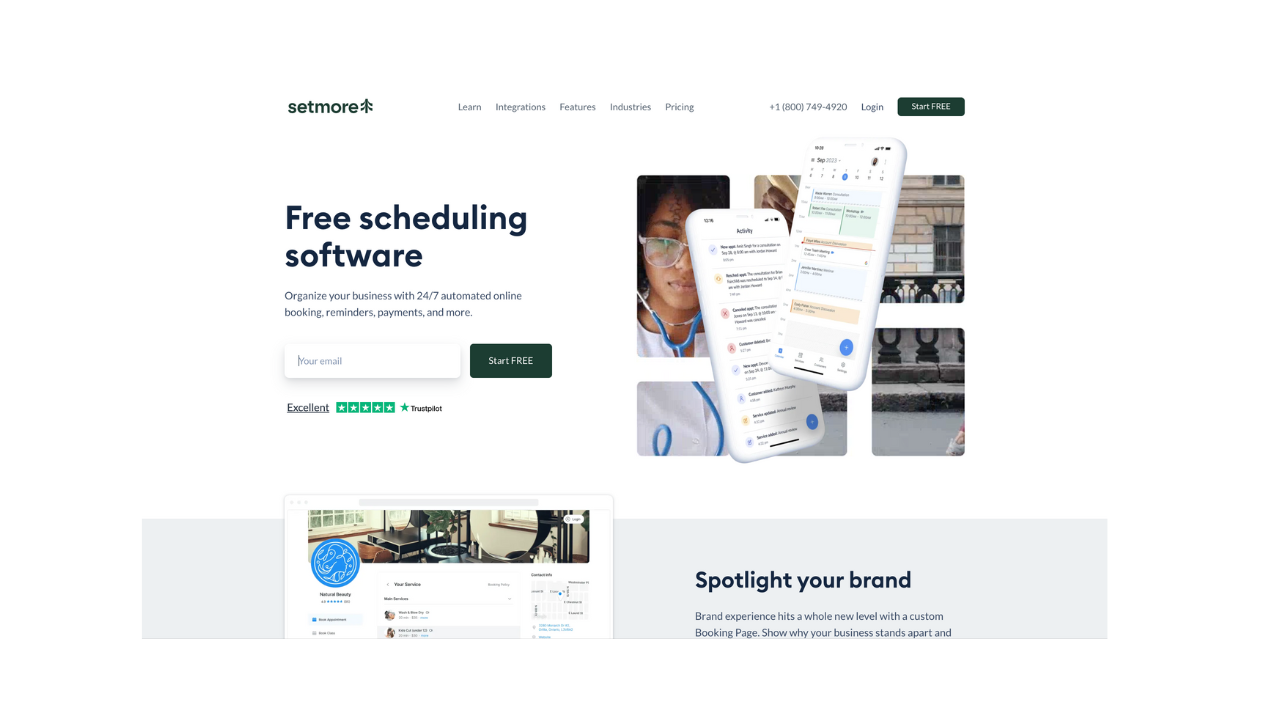
If you want a scheduling tool that helps you look professional and keep your calendar organized, Setmore is a solid choice. Here’s a step-by-step cheatsheet to get you up and running quickly.
1. Create Your Account
-
Go to Setmore.com.
-
Sign up with your email, Google account, or Facebook login.
-
Verify your email to unlock all features.
2. Customize Your Profile
-
Add your business name, logo, and contact info.
-
Upload a professional photo if you’re using it as a personal brand.
-
Set your timezone so appointments line up correctly.
3. Add Services
-
Click on Services in the sidebar.
-
Create service types (e.g., “Coaching Session – 60 mins,” “Consultation – 30 mins”).
-
Assign duration, price, and staff member (if relevant).
💡 Tip: Keep service names simple and client-friendly.
4. Set Your Availability
-
Go to Settings → Staff → Availability.
-
Define your working hours.
-
Block out breaks, holidays, or personal time.
5. Sync Your Calendar
-
Connect with Google Calendar, Outlook, or Office 365.
-
This prevents double-booking and keeps everything in one place.
6. Enable Online Booking
-
Grab your free Setmore Booking Page link.
-
Share it on your website, social media, or email signature.
-
Clients can book directly without back-and-forth emails.
7. Accept Payments (Optional)
-
Integrate Stripe, PayPal, or Square.
-
Choose whether to require payment upfront or allow pay-later options.
-
Perfect for coaches, consultants, and service providers.
8. Set Up Notifications
-
Go to Settings → Notifications.
-
Turn on SMS or email reminders for clients.
-
Enable confirmation emails for yourself.
9. Use the Mobile App
-
Download Setmore on iOS or Android.
-
Manage bookings, check availability, and accept payments on the go.
10. Pro Features to Explore
-
Recurring appointments for regular clients.
-
Teleport video meetings (Setmore’s built-in video tool).
-
Multiple staff calendars if you grow your team.
Quick Comparison
-
TidyCal → Cheaper (lifetime pricing), but more basic.
-
SimplyBook.me → More customization, but takes longer to set up.
-
Setmore → Balanced, with both free and paid plans + strong mobile app.
Pro Tip: Start with the free version. Upgrade only if you need advanced features like 2-way calendar sync, payments, or recurring bookings.
Try Setmore and streamline your client scheduling today.