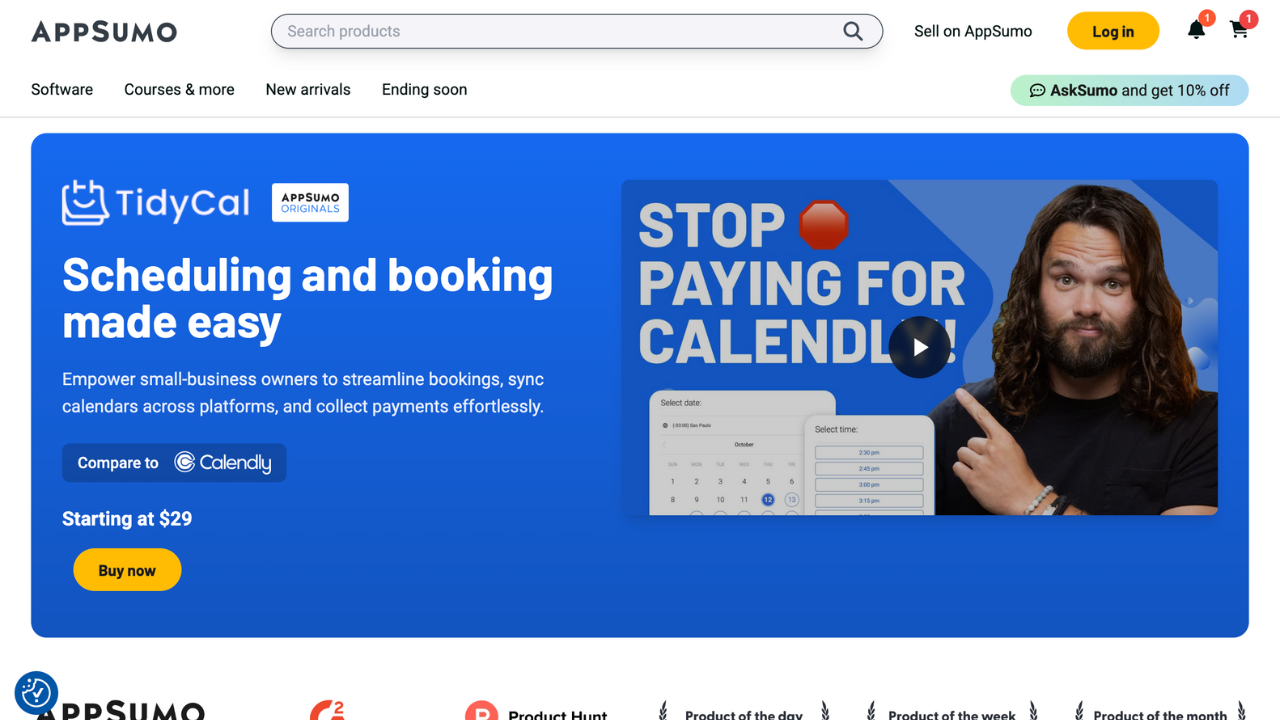
If you offer calls, consultations, or coaching, you don’t need complicated booking software. TidyCal gets you a professional booking page, avoids double‑books, and looks tidy — fast. This guide walks your customer through a 10‑minute setup and gives you ready‑to‑use sales copy, social posts, and package ideas so you can sell TidyCal setup as a service.
Why TidyCal?
-
Fast to set up — literally minutes to go live.
-
Simple booking pages clients understand instantly.
-
Helps avoid double bookings by syncing with calendars.
-
Perfect for coaches, consultants, creators, and small teams.
What you need before you begin
-
An email address (to sign up).
-
Access to the calendar they want to sync (Google, Outlook, or other calendar service).
-
(Optional) Zoom/Google Meet/phone details if they want automated meeting links.
-
A short bio and a profile image for the booking page.
10‑Minute Quick Checklist (time estimates)
-
Minute 0–1: Sign up / log in. TidyCal
-
Minute 1–3: Connect calendar (Google/Outlook).
-
Minute 3–6: Create 1 meeting type (title, duration, location).
-
Minute 6–8: Set availability & buffer times.
-
Minute 8–9: Customize page (photo, headline, description).
-
Minute 9–10: Share link & run a test booking.
Step‑by‑Step Setup (detailed)
1) Create your account — 1 minute
-
Go to TidyCal and sign up with your email (or sign in if you already have an account).
-
Confirm your email if prompted.
2) Connect your calendar(s) — 2 minutes
-
Click Connect Calendar (or Integrations).
-
Choose the calendar you use most (Google, Outlook, etc.) and grant the permission so TidyCal can check for conflicts.
-
Important: Allow read/write events if you want TidyCal to create events on your calendar automatically.
3) Create your first meeting type — 3 minutes
-
Click New Event / Meeting Type.
-
Fill in the basics:
-
Name: e.g., "30‑minute Clarity Call" or "New Client Onboarding — 45 min".
-
Duration: choose 15, 30, 45, 60 minutes etc.
-
Location: Zoom / Google Meet / Phone / In‑person / Manual link. (If using Zoom, connect your Zoom account or paste meeting link.)
-
Description: 1–2 sentences on what the client should expect.
-
-
Save the meeting type.
4) Set availability & rules — 2 minutes
-
Open the meeting type settings and add your available days/times.
-
Add buffer time (e.g., 15 min) if you need transition time between meetings.
-
Set a daily limit (max meetings per day) if desired.
-
Check timezone is correct — TidyCal usually auto‑detects this for visitors.
5) Customize your booking page — 1 minute
-
Upload a profile image and a short headline.
-
Pick a color or style (if available) so the page matches your brand.
-
Add short FAQs or directions in the description to reduce no‑shows.
6) Configure notifications & reminders — 30 seconds
-
Turn on email confirmations and reminders (if the tool provides them).
-
Edit the default confirmation text: add what to prepare or where to show up.
7) Add payments (optional) — 30 seconds to 1 minute
- If you plan to charge for calls, check if your plan supports payment links (or use Stripe/PayPal integration). If not available, add a short payment instruction in the confirmation email (e.g., “Pay via this link before the call”).
8) Test the flow — 1 minute
-
Open your public booking link in an incognito window (or send to a friend).
-
Book a test appointment using a secondary email.
-
Verify the event appears in your calendar, the confirmation email is correct, and the meeting link works.
9) Share & embed — 30 seconds
-
Copy the booking page link and add to your website, bio, emails, and social profiles.
-
Use an embed code to place it directly on a sales page or homepage.
10) Optimize for conversions (optional, 1–5 extra minutes)
-
Add a friendly headline: “Grab 30 minutes to clarify your strategy — pick a time below.”
-
Add social proof (a short testimonial) above the booking widget.
-
Add a short pre‑call intake form (name + 1 question) if you need context before the call.
Common Pitfalls & Quick Fixes
-
Double bookings: Make sure the calendar permission is set correctly and the calendar you use for daily events is the one connected to TidyCal.
-
Wrong timezone: Confirm your timezone in both your calendar and TidyCal settings.
-
No meeting link: If using Zoom/Meet, ensure that integration is connected OR paste a default meeting link in the event template.
-
No‑shows: Use reminder emails and ask for a calendar invitation in confirmation.
Service packaging & pricing
Starter TidyCal Setup — $26
-
Create account & connect 1 calendar
-
Create up to 2 meeting types
-
Basic page customization & test booking
-
One follow‑up email with how to edit
Premium TidyCal + Automation — $71
- For Teams
To sign up for your own TidyCal account please consider using our affiliate link if you found this information helpful, click here.
FAQs

Q: How long does setup take? A: The basic setup takes under 10 minutes. Testing and integration with other tools may add a few minutes.
Q: Can you connect multiple calendars? A: Yes — connect the calendars you use to avoid conflicts. If a calendar isn’t syncing, double‑check permissions.
Q: Do you collect payment through TidyCal? A: Some plans/tools support payment integrations. If not available, we add a payment link to the confirmation email or invoice separately.